











As business communication volume increases (it’s hard to imagine), so does the need to keep track of meeting appointments or reminders that something needs to be done at a certain time. Most tools require you to be logged into their system to receive your alerts. In this article, I show you how to create a reminder system that does not require you to be logged into any software or Web site. This Web page needs only one hit per day. You’ll find it useful for creating reminders for upcoming tasks, events, or appointments — and a good example of what you can do with C#. The code in this example requires little or no maintenance on your part, and can be expanded to your heart’s content.
All reminders are received by e-mail. The application I show here uses an SQL database, but it can work with any type of database, such as Access or MySQL. The application is just one page of code, so I break it into digestible pieces, beginning with the user interface.
I assume you have some experience coding with C#, so I won’t explain everything in detail, just the main tasks and points of the code. I only show the code, what it does, and where to place it in your own page. In other words, I don’t include the HTML, so you can focus on just the coding aspects and keep things more readable.
The User Interface
This part of the Web page contains everything the user sees when she visits the page. In this example, she sees a calendar and some instructions for selecting the scheduled date of the appointment or event.
Place the calendar control shown in Listing 1 below on your page where you would like it to appear.
Listing 1: The calendar control used for selecting a date
 1 <asp:Calendar id="Calendar1" BorderColor="#999999"
    Font-Names="Arial" runat="server">
 2  <OtherMonthDayStyle ForeColor="#000000"></OtherMonthDayStyle>
 3     <TitleStyle BackColor="#E5E2B9"
 4                 ForeColor="Black" Font-Bold="True">
 5     </TitleStyle>
 6     <DayStyle BackColor="#DCDCDC"></DayStyle>
 7     <SelectedDayStyle BackColor="#000000"
 8                       Font-Bold="True">
 9     </SelectedDayStyle>
10 </asp:Calendar>
The calendar Web control in Listing 1 is nothing fancy, but does the job. It displays the calendar with the styles indicated for font, foreground, and background colors. Lines 7-10 tell the compiler that this control will highlight the day in the color black when selected by the user, and bold the day number of the month.
Below the calendar control in Listing 1 are a couple of if-then conditions. Think of each if-then condition as the dynamic part of the screen the user sees below the static Calendar control. The first if-then block (first screen) displays the instructions for selecting the appointment date, along with a TextBox control that prompts the user for the time the appointment will take place. This first condition is triggered when the user first visits the page by using a URL string variable that will be explained more a bit later. The first screen the user sees when visiting page is shown below in Figure 1.
Notice the URL in Figure 1. It is passing a string variable called stat with the value set to 1. When you create a link to this page or give the URL address to someone using it (or maybe yourself), make sure to include the full path with the variable and value. If you don’t, you’ll just get the calendar, and the first if-then condition is not triggered.
To sum up what we have so far, your Web page code structure should now look like this:
<Calendar Control> (see listing 1)

if (Request.QueryString["stat"] = = 1) {
	..instructions (in html)
<TextBox control> (for getting user defined time for appt.)
}

<Image Button Control>
The text control I’m using is:
<asp:TextBox id="Appttime" Text=" Width="65px" runat="server"/>
After the user selects a date and specifies a time, she clicks the image control button. That fires off some code in a function called Button_Click, which you’ll see a bit later. The image button control I’m using in my example is:
<input type=image id=”InputImage” src=”grafix/button-submit.gif” border=”0″ OnServerClick=”Button_Click” runat=”server”>
The next and final if-then condition (on the second screen) displays a text summary of the appointment date the user selected on the first screen (the first if-then condition) and asks her to now select the date (using the Calendar again) on which she wishes to be notified. The second screen (see Figure 2) is displayed after the second if-then condition is triggered; you’ll see the code for this in just a few minutes.
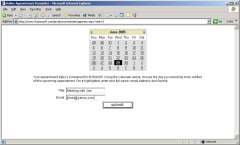
Notice the URL in Figure 2. The stat variable now contains a value of 2, which triggered the second if condition. You’ll see how this all happened in the implementation section.
This concludes the interface screens. Your Web page code structure should now look like this:
<form runat="server>
<Calendar Control> (see listing 1)

if (Request.QueryString["stat"] = = 1) {
		..instructions (in html)
<TextBox control> (for getting user defined time for appt.)

<Image Button Control>

}

if (Request.QueryString["stat"] = = 2) {
		..text summary (in html)
<TextBox control> (for getting appointment title)
<TextBox control> (for getting user email address)

<Image Button Control>

}

</form>
The text controls I use for this condition, to get the appointment title and user e-mail, are:
<asp:TextBox id="Name" Text=" Width="155px" runat="server"/>
<asp:TextBox id="Email" Text=" Width="155px" runat="server"/>
After the user enters the last bit of information, he clicks the image control button. That fires off some code in a function called Button_Click2, which contains the bulk of the code. Here’s the image button control:
<input type=image id="InputImage2" src="grafix/button-submit.gif"
   border="0" OnServerClick="Button_Click2" runat="server">
Now let’s see how this works, by looking at the Implementation portion of things.
The Implementation
All the code that does the work is contained between the HTML <head> tags of the page, in a C# script block. All the code discussed below should be placed in this block, with the following syntax:
<script language="C#" runat="server">
... all the functions here ...
</script>
In a moment, I’ll show you each of the three functions that go in the syntax structure above.
Before doing so, make sure you include the following namespaces at the top of the page, so that all your e-mail and database objects work in the code:
<%@ Import Namespace="System.Data" %>
<%@ Import Namespace="System.IO" %>
<%@ Import Namespace="System.Web.Mail" %>
<%@ Import Namespace="System.Data.SqlClient" %>
Inside the main script block, the C# page load function checks the database each time the page is hit for any reminders it needs to send that day. If it finds a day where a reminder needs to be sent, it routes it off to the corresponding e-mail address of the user that made the appointment. The code appears below in listing 2.
Listing 2: The code that checks to see if a remind needs to be sent, and if so, sends it to the user’s e-mail ID
void Page_Load(Object sender, EventArgs e)
{

1 DateTime DateIs;
2 DateTime DateIsd;
3 DateIs = DateTime.Now;

4 string email = ";
5 string datein = ";
6 string aptdate = ";
7 string apttime = ";
8 string apttitle = ";
9 int stat = 0;
10 Int id = 0;

11 datein = DateIs.ToShortDateString();

12 SqlConnection conn =
  new SqlConnection("Data Source=<your server>;
  database=CalCon;uid=xxxx;pwd=xxxx");
  SqlCommand cmd = new SqlCommand( "Select * from Appts_tbl", conn);

13 conn.Open();

14 SqlDataReader myReader = cmd.ExecuteReader();

15	while (myReader.Read())

16	{
17	       id = myReader.GetInt32(0);
18	       email = myReader.GetString(3);
19	       DateIsd = myReader.GetDateTime(4);
20	       stat = myReader.GetInt32(5);
21	       aptdate = myReader.GetString(6);
22	       apttime = myReader.GetString(7);
23 	       apttitle = myReader.GetString(8);


24	       string dateisx = ";
25	       dateisx = DateIsd.ToShortDateString();

26	       if ((datein == dateisx) && (stat == 0)) {

27	SqlConnection conn2 = new SqlConnection(
          "Data Source=<your server >;database=CalCon;uid=xxxxx;pwd=xxxxxx");
28	SqlCommand commandx =
          new SqlCommand( "Update Appts_tbl Set stat = 1 Where id = " + id, conn2);
29		conn2.Open();
30		commandx.ExecuteNonQuery();
31		conn2.Close();

32	       MailMessage msg = new MailMessage();
33	       msg.To = email;
34	       msg.From = "youremail@yourdomain.com";
35	       msg.Subject = "Just a Reminder for  " + apttitle;
36	       msg.BodyFormat = MailFormat.Html;
37	       msg.Body =
                "Here is your reminder not to miss " + apttitle +
                " on "  + aptdate + " at " + apttime;

38	       SmtpMail.Send(msg);

39	       }

40	}

41 myReader.Close();
42 conn.Close();

43 }
In my example, I call the database CalCon. After declaring and initiating the main variables, I set up a connection to the database and loop through all the records of the Appointment table. It’s looking for the condition to be met on line 26, which makes a comparison between today’s date (datein) and the date when the user is supposed to be reminded, and it checks to see if the stat field is 0 (by default).
I put this stat field in the table so that all the appointments can remain in the database; if any have been toggled to one, the script knows these the reminders for these appointments have already been fulfilled. If this condition becomes true for the record, another database connection is set up and updates this record setting the stat field value to 1, meaning the reminder for this appointment will now be fulfilled or sent to the user (lines 27-31). Lines 32-38 finish up by using the .NET e-mail objects to route the message to the user.
The remaining functions all have to do with the application and getting the user information from the Web controls, and then storing this information to the database.
The next function, Button_Click, is triggered after the image button control in Figure 1 is clicked by the user. Its job is to record the appointment date and time into Session variables (or temporary memory) that are used in the last function. The code appears below in listing 3.
Listing 3: The Button_Click function used to record the first screen’s information into temporary session variables
void Button_Click(object Source, ImageClickEventArgs e)
{

if (Appttime.Text != ") {
	Session["apptdate"] = Calendar1.SelectedDate.ToShortDateString();
	Session["appttime"] = Appttime.Text;

	Response.Redirect("apptrem.aspx?stat=2");
	}
}
The Calendar control’s SelectedDate method gets the date from the control, while converting it to a short date string and storing into a Session variable (apptdate). The function also gets the appointment time from the Apptime TextBox control, and stores into a Session variable called Apptime. These values are stored in the user’s session for later retrieval, because the user is not yet done entering information.
The last thing the function does is call the script page again (here called apptrem.aspx) and sets the URL variable stat to 2, triggering the second if condition to display the second screen (which we discussed in the implementation section). This will get the remaining information we need from the user, and then we can store it to the database with the final function, Button_Click2.
Button_Click2 adds all the information to the database after the user provides all the necessary details and is triggered after the image button control in Figure 2 is clicked by the user. The code for this function appears below in Listing 4.
Listing 4: The Button_Click2 function used stores the information to the database
 1  void Button_Click2(object Source, ImageClickEventArgs e)
 2  {

 3 if (Email.Text != ") {

 4  	int id = 0;
 5	DateTime DateIs;
 6	DateIs = DateTime.Now;

 7	SqlConnection conn = new SqlConnection("Data Source=<your server>;
                database=CalCon;uid=xxxx;pwd=xxxx");
 8	SqlCommand command =
                new SqlCommand( "INSERT INTO Appts_tbl(email,daten, datea,apt_time,name)
                VALUES (@email, @daten, @datea, @apt_time, @name)", conn);

 9	conn.Open();

10	SqlParameter param1 = new SqlParameter( "@email", SqlDbType.VarChar,75);
11	Param1.Value = Email.Text;
12	command.Parameters.Add( param1 );

13	SqlParameter param2 = new SqlParameter( "@daten", SqlDbType.DateTime);
14	param2Value = Calendar1.SelectedDate.ToShortDateString();
15	command.Parameters.Add( param2 );

16	SqlParameter param3 = new SqlParameter( "@datea", SqlDbType.VarChar,25);
17	Param3.Value = (String) Session["apptdate"];
18	command.Parameters.Add( param3 );

19	SqlParameter param4 = new SqlParameter( "@apt_time", SqlDbType.VarChar,15);
20	Param4.Value = (String) Session["appttime"];
21	command.Parameters.Add( param4 );

22	SqlParameter param5 = new SqlParameter( "@name", SqlDbType.VarChar,100);
23	Param5.Value = Name.Text;
24	command.Parameters.Add( param5 );

25	int numRowsAffectedx = command.ExecuteNonQuery();

26	conn.Close();

27	Response.Redirect("confirm.aspx");

28	}
29 }
All this function does is add the information to the database. You can see where the Session variables from the Button_Click function are used to add the appointment date and time (lines 17 and 20) to their respective database fields. On line 14, we once again use the Calendar control’s SelectedDate method; this time, it’s to get the reminder date and store it directly a database. On line 27, after all the information is entered, we route the user to a confirmation page displaying a friendly message saying that all the information was received and the reminder will be sent on the day specified.
You can apply the code in this article to your page in the sequence that it is shown and explained; it should work fine as it is. You can certainly have more fun with this by adding additional features. If you have an account with a Web based e-mail server, such as Hotmail or Yahoo, this application is nice because you can get the reminders right on your cell-phone!